摘要
一位参与调研工作的学员,分享用 TRAE 与 VBAYYDS 整理 Excel 调查表、再将修正数据批量写入 Word 对应表格的经历。文章从竖表转置与多表汇总讲起,介绍按名称建立映射、读取数组、匹配目标表格和写入数据的思路,并附上作者使用的 VBA 源码。处理用时为作者自述,源码保留原稿,供理解其具体业务流程。
作者:冬雨*(调研数据整理) · 学员投稿;文中效果与效率为作者自述。
在没接触这套组合工具之前,我对VBA的认知就是:必须会敲代码、懂语法、懂英文,零基础根本无从下手。传统VBE编辑器只能手动码字,所有功能都需要逐行编写,遇到复杂的数据汇总、批量处理需求,就算心里清楚想要什么效果,也因为不会写代码、记不住语法无法实现。
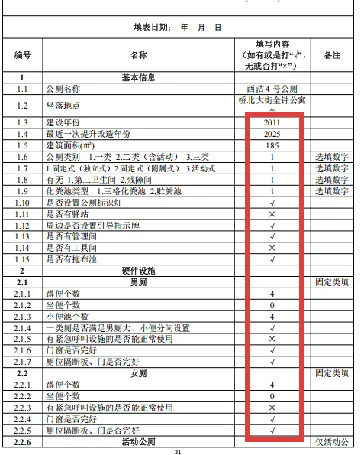
我最近参与一项调研工作,主要是使用excel收集数据整理分析,修正错误后将数据再写入word中对应的表格中,其中每行excel对应word的一个表格。
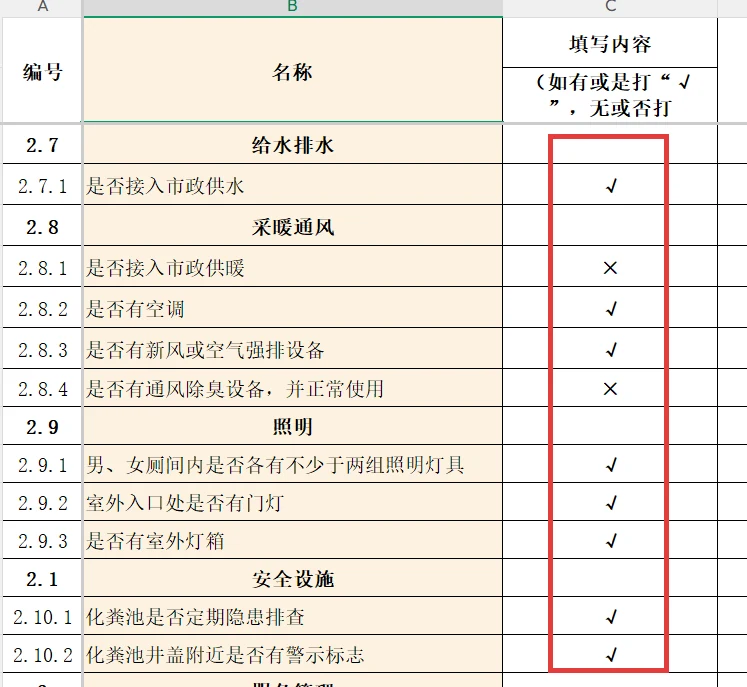
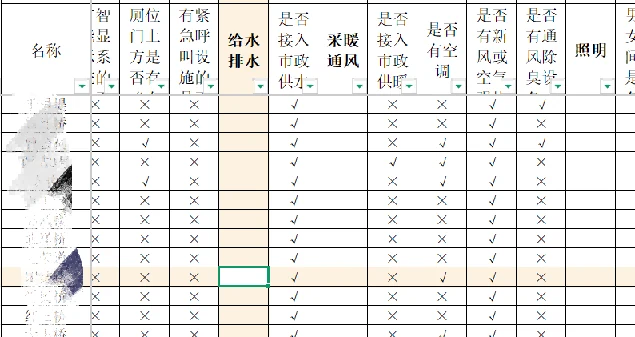
收集上来的数据有的是一个excel文件只有一个sheet,有的有很多sheet,这些表格还都是竖向的。通过转置、合并汇总成有效数据。
| 原表格,竖向 | |
|---|---|
 |
|
| 汇总后,横向 | |
 |
|
| 写入word,第三列是写入的数据。Excel每行对应一个word表格,表格在不同的页上。 | |
 |
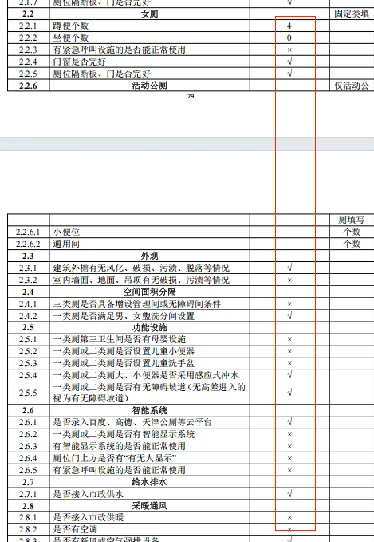 |
| Excel里大约200多行数据,对应200多个word表 | |
这部分工作通过VBAYYDS做了合并汇总的模块,2天的工作压缩为几分钟搞定!
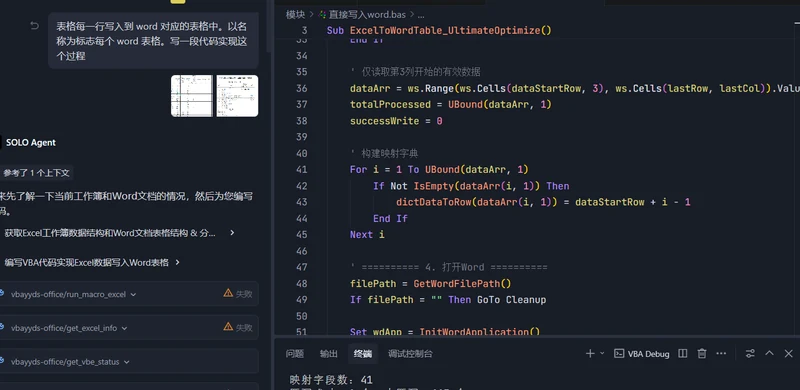
下面是要把这些修正好的数据再写入word,这个有些难度。在没有 VBAYYDS 之前,百度搜索、文心、豆包能用的都试过了,复制、粘贴、调试用了很长时间。直至使用了郑老师的工具一下搞定,如果一个个复制粘贴没几天是完不了的,一下几分钟就完成了。下面介绍一下实现过程。
 |
|---|
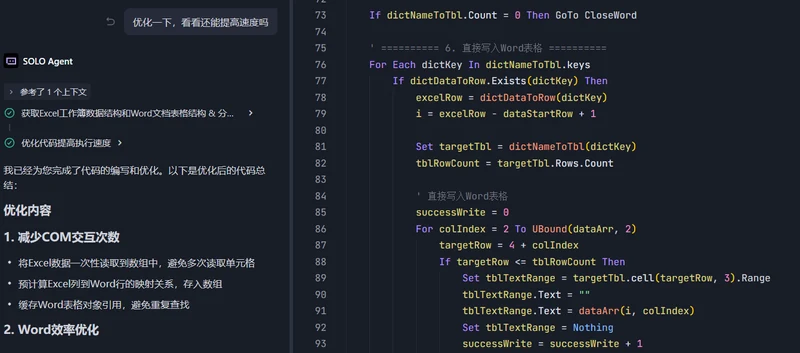 |
实现Excel 指定工作表数据 → 批量精准写入 Word 指定表格的自动化操作,核心解决「手动复制粘贴 Excel 数据到 Word 多个表格」的低效问题。
模块 1:变量声明与初始化
- dictNameToTbl:存储「名称 → 对应 Word 表格」的映射;
- dictDataToRow:存储「名称 → 对应 Excel 行号」的映射;
- 定义数据起始行、最后行列、计时变量等基础参数。
模块 2:Excel 数据高效读取
- 定位「目录」工作表,从第 4 行开始读取有效数据,自动判断最后一行 / 列;
- 将读取的数据存入二维数组dataArr(内存操作,比直接操作单元格快 10 倍以上);
- 遍历数组,构建dictDataToRow映射,快速关联名称与 Excel 行号。
模块 3:Word 环境初始化与效率优化
- 调用文件选择框,让用户手动选择目标 Word 文档;
- 关闭屏幕刷新、显示警告、后台打印、分页功能;
- 隐藏 Word 窗口,避免渲染消耗性能;
- 以非只读模式打开 Word 文档,支持编辑保存。
模块 4:Word 表格映射构建(BuildToiletTableMap_Opt)
- 遍历 Word 中所有表格,仅读取一次表格行列数(减少 COM 交互);
- 提取表格中第 5 行第 3 列的「名称」,清洗文本(去除空格、换行、特殊字符);
- 将有效「名称 – 表格」存入dictNameToTbl字典,完成映射。
模块 5:核心批量写入逻辑
- 初始化写入缓存数组writeBuffer,一次性存储待写入的所有数据;
- 遍历映射字典,匹配 Excel 与 Word 的名称:
- 通过字典快速定位目标 Excel 行、目标 Word 表格;
- 将 Excel 数据先写入缓存数组,再批量写入 Word 单元格;
- 写入时先清空单元格原有内容,再覆盖新数据,保证数据整洁。
模块 6:收尾与内存清理
- 恢复 Word 默认设置(屏幕刷新、显示、分页等),不影响 Word 正常使用;
- 自动保存并关闭 Word 文档,退出 Word 应用;
- 强制释放所有对象(工作表、字典、Word 对象)、清空数组,释放内存;
- 计时并弹窗提示执行结果,展示总耗时。
模块 7:辅助函数(通用工具)
- CleanWordText:清洗 Word 文本,去除多余空格、换行、特殊字符;
- GetWordFilePath:调用文件选择框,安全获取 Word 路径;
- InitWordApplication:自动检测 / 新建 Word 应用,兼容已打开的 Word;
- OpenWordDocument:无弹窗打开 Word 文档,禁止添加到最近文件。
- 后附源码供有用的同学学习
Option Explicit
Sub ExcelToWordTable_UltimateOptimize()
Dim tim1 As Double, tim2 As Double
tim1 = Timer
' ========== 1. 声明变量(极致精简) ==========
Dim wdApp As Object, wdDoc As Object, targetTbl As Object
Dim ws As Worksheet, dataArr As Variant, writeBuffer() As String
Dim dictNameToTbl As Object, dictDataToRow As Object
Dim lastRow As Long, lastCol As Long, i As Long, colIndex As Long
Dim dataStartRow As Long, filePath As String, totalProcessed As Long
Dim successWrite As Long, excelRow As Long, targetRow As Long
Dim dictKey As Variant, tblRowCount As Long, tblTextRange As Object
' ========== 2. 初始化核心对象(极简) ==========
Set dictNameToTbl = CreateObject("Scripting.Dictionary")
Set dictDataToRow = CreateObject("Scripting.Dictionary")
dictNameToTbl.CompareMode = vbTextCompare
dictDataToRow.CompareMode = vbTextCompare
' ========== 3. 读取Excel数据(仅读必要列) ==========
Set ws = ThisWorkbook.Sheets("目录")
dataStartRow = 4
lastRow = ws.Cells(ws.Rows.Count, "A").End(xlUp).Row
lastCol = ws.Cells(dataStartRow, ws.Columns.Count).End(xlToLeft).Column – 1
If lastRow < dataStartRow Then
MsgBox "汇总表无有效数据!", vbExclamation
GoTo Cleanup
End If
' 仅读取第3列开始的有效数据(跳过空行)
dataArr = ws.Range(ws.Cells(dataStartRow, 4), ws.Cells(lastRow, lastCol)).Value
totalProcessed = UBound(dataArr, 1)
successWrite = 0
' 构建映射字典(仅非空值)
For i = 1 To UBound(dataArr, 1)
If Not IsEmpty(dataArr(i, 1)) Then
dictDataToRow(dataArr(i, 1)) = dataStartRow + i – 1
End If
Next i
' ========== 4. 打开Word(极致效率设置) ==========
filePath = GetWordFilePath()
If filePath = "" Then GoTo Cleanup
Set wdApp = InitWordApplication()
If wdApp Is Nothing Then
MsgBox "Word启动失败!", vbCritical
GoTo Cleanup
End If
' Word终极效率设置(关闭所有非必要渲染)
With wdApp
.ScreenUpdating = True
.DisplayAlerts = True
.Visible = True ' 完全隐藏Word窗口(最大提速)
.Options.Pagination = True ' 关闭分页
.Options.PrintBackground = True ' 关闭后台打印
End With
Set wdDoc = OpenWordDocument(wdApp, filePath)
If wdDoc Is Nothing Then GoTo CloseWord
If wdDoc.Tables.Count = 0 Then GoTo CloseWord
' ========== 5. 构建映射字典(缓存表格行列数) ==========
Call BuildToiletTableMap_Opt(wdDoc, dictNameToTbl)
If dictNameToTbl.Count = 0 Then GoTo CloseWord
' ========== 6. 核心优化:批量写入Word表格 ==========
ReDim writeBuffer(1 To UBound(dataArr, 2)) ' 初始化写入缓存
For Each dictKey In dictNameToTbl.keys
If dictDataToRow.Exists(dictKey) Then
' 计算索引
excelRow = dictDataToRow(dictKey)
i = excelRow – dataStartRow + 1
Set targetTbl = dictNameToTbl(dictKey)
tblRowCount = targetTbl.Rows.Count ' 缓存行列数(仅读一次)
' 1. 填充写入缓存
For colIndex = 2 To UBound(dataArr, 2)
targetRow = 4 + colIndex
If targetRow <= tblRowCount Then 'And Not IsEmpty(dataArr(i, colIndex))
writeBuffer(colIndex) = dataArr(i, colIndex)
successWrite = successWrite + 1
Else
writeBuffer(colIndex) = ""
Exit For ' 行数不足,终止当前表格
End If
Next colIndex
' 2. 批量写入(核心提速:一次交互替代多次)
If successWrite > 0 Then
For colIndex = 2 To UBound(writeBuffer)
targetRow = 4 + colIndex
If targetRow <= tblRowCount Then 'And writeBuffer(colIndex) <> ""
' 直接获取单元格范围(减少属性访问)
Set tblTextRange = targetTbl.cell(targetRow, 3).Range
'tblTextRange.End = tblTextRange.Start ' 清空原有文本
tblTextRange.Text = "" ' 清空原有文本
tblTextRange.Text = writeBuffer(colIndex)
Set tblTextRange = Nothing
End If
Next colIndex
End If
Set targetTbl = Nothing
End If
Next dictKey
' ========== 7. 收尾(恢复Word设置) ==========
CloseWord:
If Not wdApp Is Nothing Then
' 恢复Word默认设置
With wdApp
.ScreenUpdating = True
.DisplayAlerts = True
.Visible = True
.Options.Pagination = True
.Options.PrintBackground = True
End With
Set wdApp = Nothing
End If
'保存并关闭Word文档
If Not wdDoc Is Nothing Then
wdDoc.Save
wdDoc.Close
Set wdDoc = Nothing
End If
'退出Word(如需保留窗口,注释此行)
If Not wdApp Is Nothing Then
wdApp.Quit
Set wdApp = Nothing
End If
Cleanup:
' 强制释放内存
Set ws = Nothing
Set dictNameToTbl = Nothing
Set dictDataToRow = Nothing
Erase dataArr
Erase writeBuffer
' 输出结果
tim2 = Timer
MsgBox "极致优化版执行完成!" & vbCrLf & _
"总耗时:" & Format(tim2 – tim1, "0.00") & "秒"
End Sub
' ========== 优化版映射函数(缓存表格行列数) ==========
Private Sub BuildToiletTableMap_Opt(wdDoc As Object, ByRef dictNameToTbl As Object)
If wdDoc Is Nothing Or dictNameToTbl Is Nothing Then Exit Sub
Dim targetTbl As Object, tblHeader As String, toiletName As String
Dim tblRowCount As Long, tblColCount As Long
For Each targetTbl In wdDoc.Tables
' 仅读取一次行列数(减少COM交互)
tblRowCount = targetTbl.Rows.Count
tblColCount = targetTbl.Columns.Count
If tblRowCount >= 50 And tblColCount >= 3 Then
' 精简文本清洗(直接调用函数)
tblHeader = CleanWordText(targetTbl.cell(1, 1).Range.Text)
If tblHeader = "城市体检评估表" Then
toiletName = CleanWordText(targetTbl.cell(5, 3).Range.Text)
If Len(toiletName) >= 2 And Not dictNameToTbl.Exists(toiletName) Then
Set dictNameToTbl(toiletName) = targetTbl
End If
End If
End If
Set targetTbl = Nothing
Next targetTbl
End Sub
' ========== 保留原有辅助函数(精简版) ==========
Private Function CleanWordText(rawText As String) As String
CleanWordText = Trim$(Replace$(Replace$(Replace$(rawText, Chr$(7), ""), Chr$(13), ""), Chr$(10), ""))
End Function
Private Function GetWordFilePath() As String
Dim fd As FileDialog
On Error Resume Next
Set fd = Application.FileDialog(msoFileDialogFilePicker)
With fd
.Title = "选择Word文档"
.Filters.Add "Word文档", "*.docx;*.doc"
.AllowMultiSelect = False
If .Show = -1 Then GetWordFilePath = .SelectedItems(1)
End With
Set fd = Nothing
End Function
Private Function InitWordApplication() As Object
Dim wdApp As Object
On Error Resume Next
Set wdApp = GetObject(, "Word.Application")
If Err.Number <> 0 Then Set wdApp = CreateObject("Word.Application")
Set InitWordApplication = wdApp
End Function
Private Function OpenWordDocument(wdApp As Object, filePath As String) As Object
Dim wdDoc As Object
If wdApp Is Nothing Then Exit Function
On Error Resume Next
Set wdDoc = wdApp.Documents.Open(filePath, ReadOnly:=False, AddToRecentFiles:=False)
Set OpenWordDocument = wdDoc
End Function